Assigning a OneDrive folder that is not mounted in Windows
SyncFolder allows you to assign a unmounted OneDrive folder as target location for a task. If you want to do that you must first set the option
in the location dropdown menu of the Task properties page to OneDrive and then tap the Select drive/folder button.
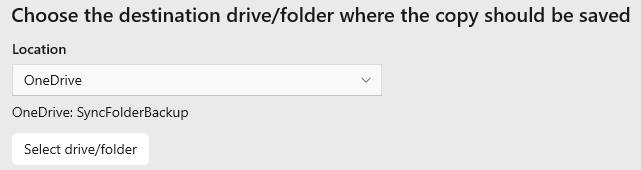
When successfully authenticated SyncFolder will open a dialog in which you have to select the folder that you want to assign to the task.
This method of accessing a OneDrive folder is considerably slower than using a mounted OneDrive folder that is registered in the
Windows file system. It requires extensive interaction with the OneDrive cloud service because of the underlying use of HTTPS over the Internet.
The communication with the OneDrive webservice makes use of the user's account and an authentication token which SyncFolder receives during the
initial authentication phase. Because the token has to be used in subsequent sync or backup actions the app will save it in a local cache file.
SyncFolder will also automatically refresh the access token whenever necessary.

Last modified: january 27, 2024